Personal Access Tokens & basic auth are being retired across Azure DevOps, Jira, ServiceNow & more. Switch to OAuth 2.0 — fully supported in ADL Connect.
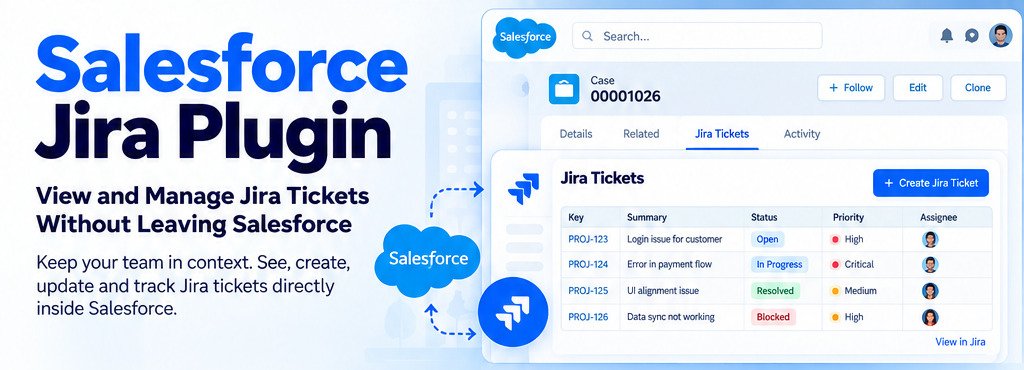
Salesforce Jira Plugin: View and Manage Jira Tickets Without Leaving Salesforce
Posted on
Updated on October 24, 2026
Author : ADL Solution
Salesforce & Jira · Plugin Guide
Switching between Salesforce and Jira all day isn't just annoying. It's where context gets lost.
A sales rep flags a bug a customer reported, but by the time it's logged in Jira the link back to the original Salesforce case is gone. A support agent wants to check whether a fix shipped, but has to leave the case record and dig through Jira separately. An account manager preparing for a renewal call has no idea three bugs are still open against that customer's account.
A Salesforce Jira plugin solves this by surfacing Jira directly inside the Salesforce interface your team already works in, all day, every day. This guide covers what a Salesforce Jira plugin actually does, how it differs from a background sync integration, who typically needs one, the challenges teams run into, and how to set one up properly.
The basics
What Is a Salesforce Jira Plugin?
A Salesforce Jira plugin is different from a full backend integration, and the distinction matters before you set anything up.
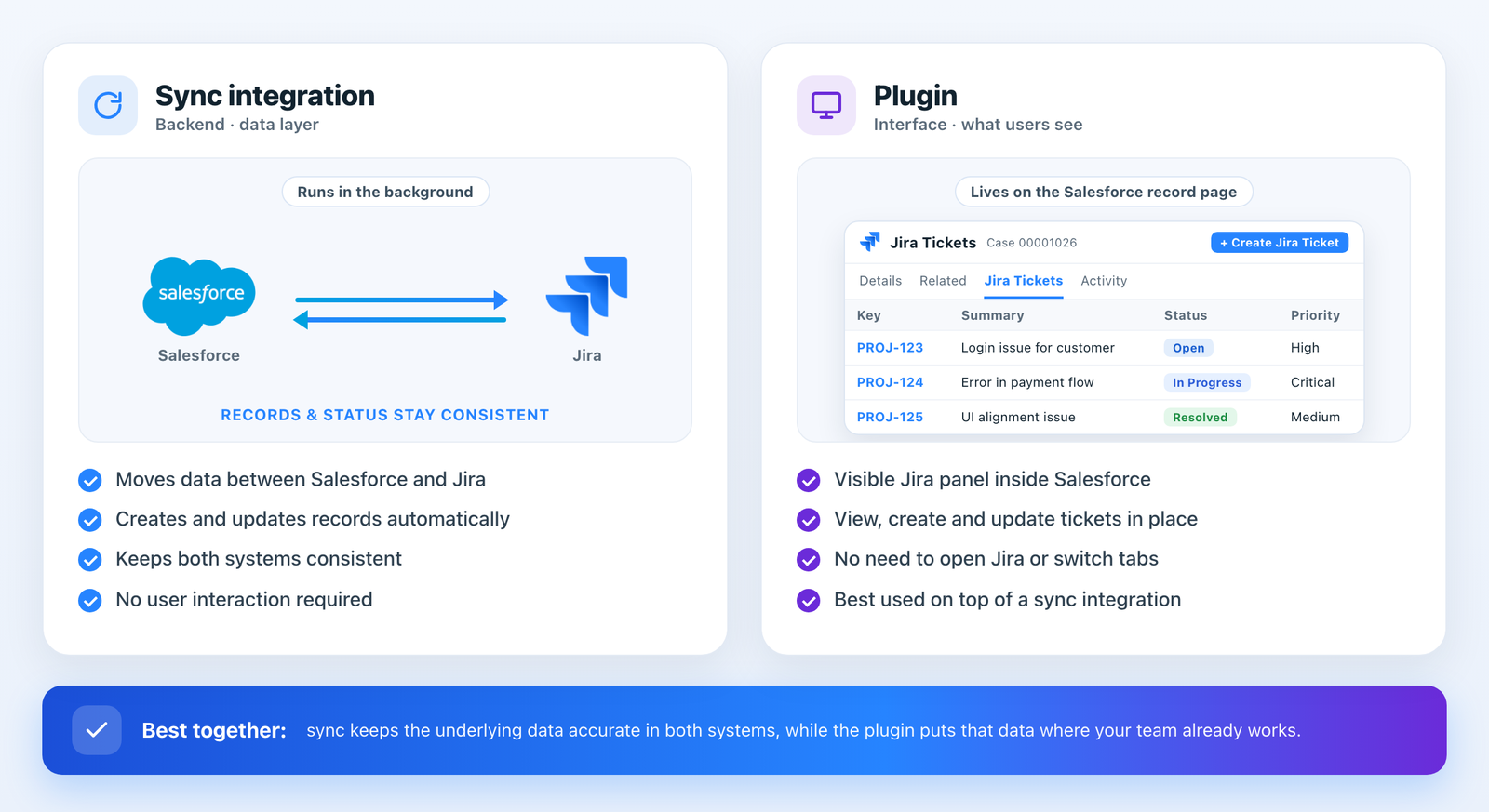
A sync integration, like a standard Salesforce Jira connector, moves data between the two platforms behind the scenes. A new Jira ticket creates a related Salesforce record, and a status change in one system reflects in the other automatically, without anyone opening either app to trigger it.
A plugin, by contrast, is about the interface itself. It adds a visible Jira panel, related list, or embedded component directly onto a Salesforce record page, so a user can see, create, or update a Jira ticket from inside Salesforce's own layout without switching tabs or windows at all.
Sync keeps the data consistent. The plugin puts that data on the record page.
Most mature setups use both together. Sync keeps the underlying data consistent across both systems, while the plugin gives day-to-day visibility exactly where the team already spends its time. Using one without the other usually leaves a gap: sync alone means the data is accurate but still requires opening Jira to see it, and a plugin without sync can mean the view works but isn't reliably kept current behind the scenes.
Capabilities
What You Can Do With Jira Inside Salesforce
The day-to-day actions a Salesforce Jira plugin puts directly on the record page.
View linked tickets
See every Jira ticket linked to a Salesforce Case, Opportunity, or Account record, right where the record lives.
Check live status
Read the current ticket status (Open, In Progress, Resolved, Blocked) without opening Jira separately.
Create Jira tickets
Raise a new ticket from inside a Salesforce case, with case details, customer name, and priority auto-filled.
Update and comment
Add a comment or change ticket fields from the Salesforce page, so the conversation stays in one place.
Filter and sort
See all tickets tied to a specific account, so an account manager spots every open issue for that customer at a glance.
Attach files
Push screenshots or files from a Salesforce case straight onto the linked Jira ticket, keeping evidence together.
Fit check
Who Needs a Salesforce Jira Plugin?
Not every team needs an embedded view. Some are fine with periodic sync alone. It is worth considering specifically if:
Support agents field tickets that reference engineering bugs and currently have to check Jira status by hand mid-conversation with a customer.
Sales and account teams need visibility into open technical issues before renewal, upsell, or QBR conversations, without learning to navigate Jira themselves.
Non-technical Salesforce users (support, sales, customer success) would otherwise need a Jira licence and training just to check a ticket's status.
Leadership wants a single reporting view, built in Salesforce, that reflects real engineering status without exporting data from two systems.
If your team is mostly engineers who already live in Jira every day, a Salesforce Jira plugin adds less value. Sync alone may be sufficient, because the people doing the work are already in the right tool.
The payoff
Why Teams Add a Jira Panel on Top of Sync
What changes once a Salesforce Jira plugin puts tickets on the record instead of a tab away.
Faster context for support
No tab-switching mid-conversation with a customer, which directly shortens resolution time and improves the experience.
Clearer sales-to-engineering handoff
A rep can see exactly where a reported bug stands before promising a customer a timeline.
Fewer missed updates
Ticket status sits where the team already works, instead of relying on someone remembering to check Jira.
Lower training overhead
Reps only need to learn Salesforce, not a second tool, which matters for teams with high turnover or seasonal hires.
Better account-level reporting
Leadership builds Salesforce reports and dashboards that reflect real Jira status, not manually exported spreadsheets.
Cleaner bug reports
Tickets created from a case carry the case details with them, so engineering receives complete, consistent reports.
Watch out
Common Challenges When Adding a Jira Plugin to Salesforce
The issues that show up most often with a Salesforce Jira plugin, and what to check before go-live.
Licensing confusion
Not every Salesforce user needs a Jira licence to view a ticket, but some setups still need API access tied to a licensed Jira seat. Confirm with your Jira admin first.
Field mapping mismatches
Custom Jira fields or workflows may not display out of the box. Expect a short configuration pass before go-live.
Permission and visibility
Internal engineering tickets are not meant for customer-facing teams. Set field-level and page-layout permissions deliberately, not by default.
Performance on busy pages
Another live panel on an already crowded record page can slow load times. Test on your most-used layout before deploying org-wide.
Duplicate tickets
If reps create tickets from a case while engineers also log them in Jira, one issue can end up as two tickets. Agree which side creates.
Stale data behind the panel
A plugin only shows what the sync delivered. If sync lags or fails silently, the panel looks fine but is out of date, so monitor sync health.
Decision guide
Plugin vs. Full Integration: Which Do You Need?
Not sure whether you need a sync, a Salesforce Jira plugin, or both? Here is a simple way to decide.
Question
Integration only
Plugin only
Both Recommended
Main goal
DataAccurate backend data for reporting, automation, and triggers.
VisibilityFaster visibility without switching tools.
BothAccurate data and in-context visibility.
Best for
Admins, ops, and teams that don't look at raw tickets day to day.
Teams that already trust their Jira data and want it closer.
Support and customer-facing teams with non-technical users.
Where tickets show
In Jira; Salesforce holds the synced records.
On the Salesforce record page.
On the record page, backed by live sync.
Two-way updates
YesField by field.
DependsOnly as reliable as the data behind it.
YesReliable in both directions.
Non-technical users
PartialStill open Jira for detail.
Stay in SalesforceNo Jira training.
Stay in SalesforceNo Jira login needed.
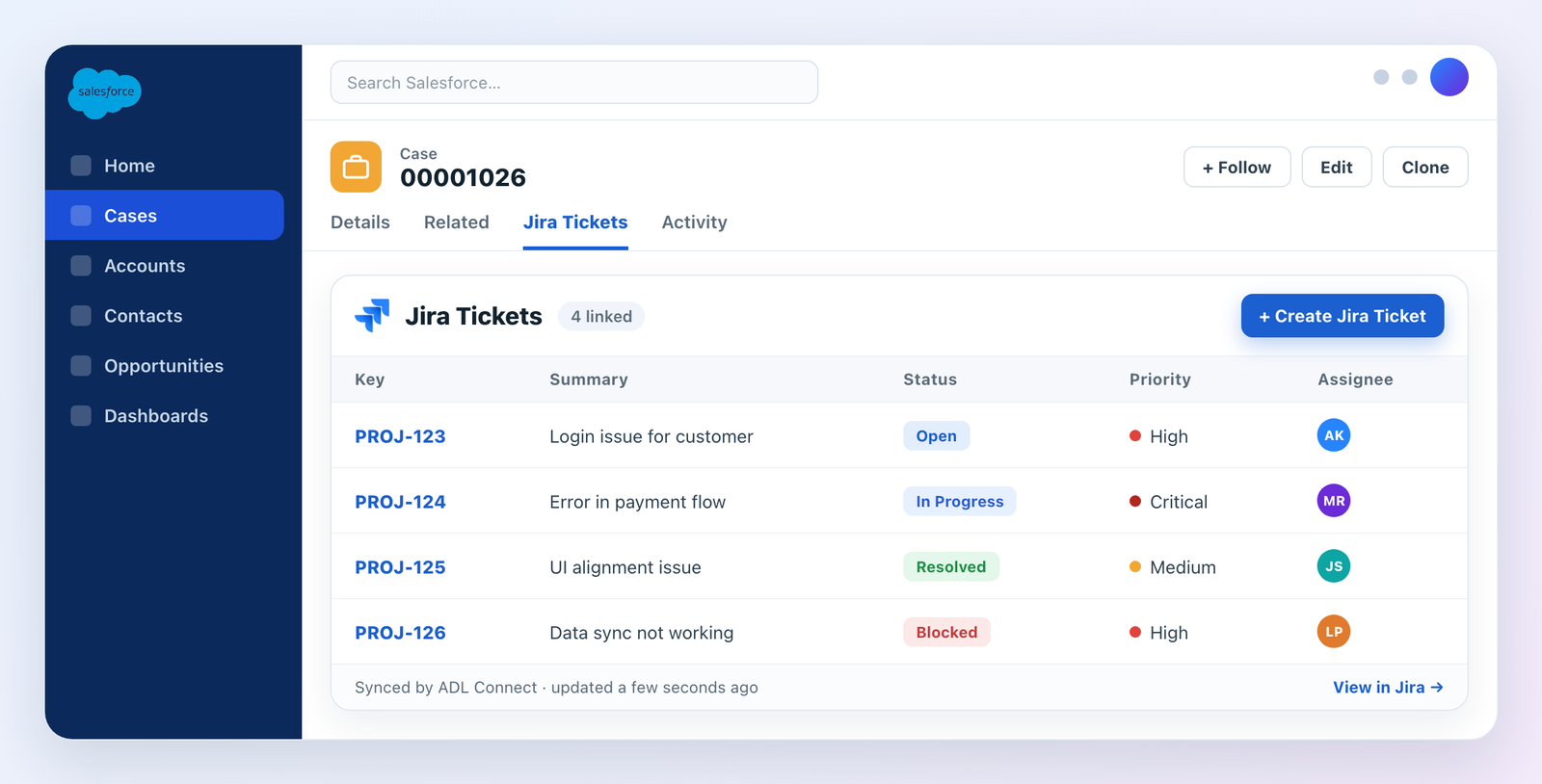
The Jira Tickets panel as it appears on a Salesforce Case record.
The solution
How ADL Connect Brings Jira Into the Salesforce Interface
ADL Connect for Jira installs from the Salesforce AppExchange and adds a Jira panel directly onto standard Salesforce Lightning record pages. Alongside the real-time data sync covered in our complete Salesforce Jira integration guide, this gives teams both the backend consistency and the front-end visibility in one setup.
There is no separate middleware dashboard to check ticket status, and non-technical users never have to log into Jira. For engineers who live in Jira, the companion app on the Atlassian Marketplace does the reverse, showing Salesforce records inside the Jira issue view.
Step-by-step setup
Setting Up a Salesforce Jira Plugin in Seven Steps
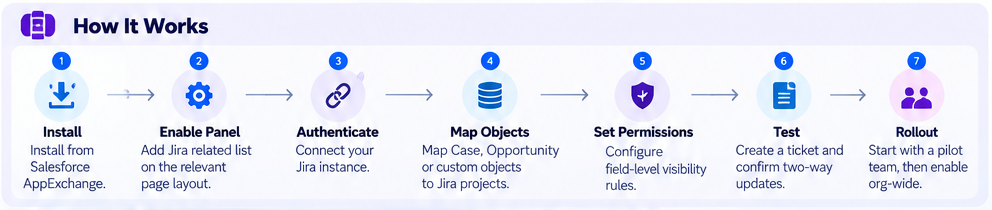
From install to org-wide rollout. Most teams complete the first pilot in an afternoon.
The seven-step rollout at a glance.
1
Install from AppExchange
Add ADL Connect to your Salesforce org from the AppExchange, if it is not already installed. No external hosting is needed.
2
Enable the Jira panel
Add the Jira-related list or panel to the Case (or other relevant object) page layout using the Lightning App Builder.
3
Authenticate your Jira instance
Connect Jira Cloud through the ADL Connect setup screen using OAuth 2.0, secured with Salesforce Named Credentials.
4
Map objects to projects
Choose which Salesforce object (Case, Opportunity, or a custom object) should display linked tickets, and which Jira project each one maps to.
5
Set visibility rules
Apply field-level security so sensitive or internal-only tickets are not shown to every Salesforce user.
6
Test with a sample record
Create a ticket directly from a sample Salesforce record and confirm status updates reflect correctly in both directions.
7
Pilot, then roll out
Enable the panel for one support team or one account team first, then open it up org-wide once mappings and permissions are confirmed.
Need more detail on any step? The Jira connector user guide walks through installation, authentication, and field mapping screen by screen.
Best practices
Rolling Out a Salesforce Jira Plugin to Your Team
Pilot with one team first rather than enabling it for everyone at once. This surfaces field-mapping or permission issues early, with a smaller blast radius.
Document which Salesforce object maps to which Jira project, especially if your org runs multiple Jira projects across different product lines.
Set expectations on both sides. Make sure engineering knows customer-facing staff may now see ticket status directly, which can change how tickets get titled and commented on.
Review permissions quarterly, not just at setup. Team structures and what should be customer-visible shift over time.
Customer feedback
What Teams Say About Jira Inside Salesforce
A few words from teams that rolled out a Salesforce Jira plugin with ADL Connect.
★★★★★
“Our agents stopped asking engineering "any update on that bug?" in Slack. They just look at the case.”
DM
Daniel M.Support Operations Lead, SaaS
★★★★★
“Account managers now walk into renewals knowing exactly which issues are still open. That alone paid for it.”
AP
Anita P.VP of Customer Success, Fintech
★★★★★
“We tried giving sales Jira licences. Nobody used them. Putting the tickets in Salesforce is what actually worked.”
KO
Kevin O.Salesforce Administrator, Logistics
Pricing
ADL Connect for Jira Plans
Start free on AppExchange, pilot with one team, and upgrade only when you need more scale.
Plan
Price
Key inclusions
StartupFree forever
$0
Up to 5 users, 1,000 callouts, the native AppExchange package, and business-hours support.
SilverGrowing teams
$129 / month
Up to 10 users, 2,000 callouts, and email & chat support with a 24-hour response.
EnterpriseBest value
$49 / month
First-year offer (renews at $199/month). Unlimited users and callouts, 24×7 priority support, and a dedicated account manager.
Prices are billed annually. See the full plan comparison on the ADL Connect for Jira page.
FAQ
Frequently Asked Questions
Is a Salesforce Jira plugin the same as an integration?
Not exactly. An integration syncs data between the two systems in the background. A plugin adds a visible Jira panel directly inside Salesforce, so users can see and interact with tickets without switching tabs. Most setups use both together.
Can I create a Jira ticket directly from Salesforce?
Yes. With the right plugin and sync setup, a user can create a new Jira ticket from within a Salesforce case or record, with the relevant details carried over automatically.
Does a Salesforce Jira plugin work with Lightning?
Yes. The ADL Connect Jira panel is designed for standard Salesforce Lightning record pages and is added through the Lightning App Builder like any other component.
Do all Salesforce users need a Jira licence to use this?
It depends on the setup. Some configurations only need API-level access tied to a small number of licensed accounts, while others require a licence per viewing user. Confirm this with your Jira admin before planning a wider rollout.
Can I control which Jira tickets are visible to which Salesforce users?
Yes. Field-level security and page-layout permissions in Salesforce restrict which tickets, and which ticket details, appear to each user profile, so internal-only engineering tickets are not shown to customer-facing teams by accident. See our Trust & Security page for how ADL Connect handles permissions.
See Jira Tickets Inside Salesforce in Minutes
A Salesforce Jira plugin gives support, sales, and account teams the Jira context they need without a second tool. Install ADL Connect free from the Salesforce AppExchange, or talk to our team about your page layouts and projects.