Personal Access Tokens & basic auth are being retired across Azure DevOps, Jira, ServiceNow & more. Switch to OAuth 2.0 — fully supported in ADL Connect.
Salesforce Jira Field Mapping: How to Fix Missing Fields and Status Mismatches
Posted on
Updated on October 23, 2026
Author : ADL Solution
Salesforce & Jira · Field Mapping Guide
The connection may be working while the data rules are not.
Salesforce and Jira are usually run by different teams in the same organization. Salesforce helps sales and support manage customer relationships, opportunities, and cases. Jira helps development teams manage issues, bugs, and engineering work. Connecting the two reduces manual data entry and improves collaboration, but an integration can still produce wrong results when the fields and values in each system are not mapped properly.
A Salesforce case priority may not match the priority options available in Jira. A custom field may not appear in the mapping configuration. A status update may fail because the destination workflow does not support the requested transition. These are not connection problems. They are Salesforce Jira field mapping problems, and this guide explains how to find and fix them.
The basics
What Is Field Mapping in a Salesforce Jira Integration?
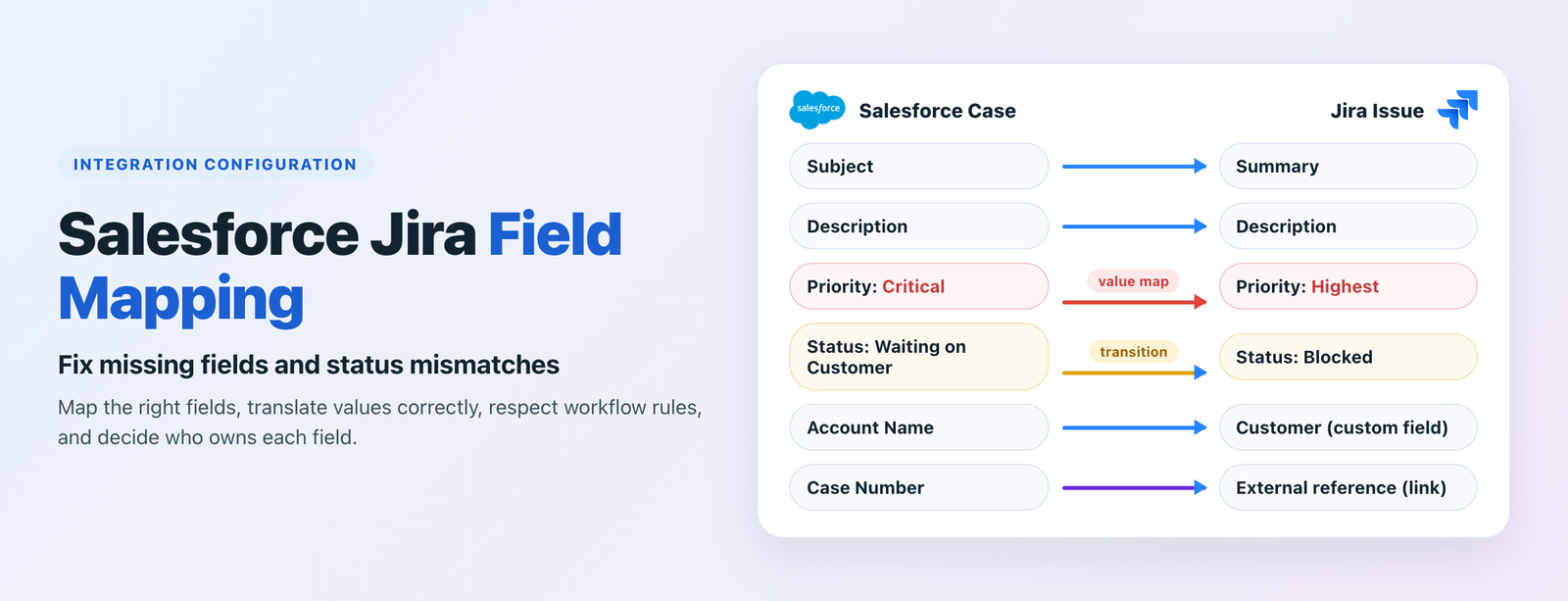
Field mapping defines how a field in one platform corresponds to a field in the other, and how its values are transferred or transformed.
Salesforce field
Jira field
Mapping purpose
Case Subject
Issue Summary
Transfer the issue title.
Case Description
Issue Description
Share the reported problem.
Case Priority
Issue Priority
Value mapAlign urgency levels.
Case Status
Issue Status / workflow state
TransitionCoordinate progress.
Account Name
Customer reference or custom field
Preserve customer context.
Case Number
External reference field
LinkTie the two records together.
The exact Salesforce Jira field mapping depends on the connector, the available fields, workflow configuration, and business requirements. Not every Salesforce field has a direct equivalent in Jira, so a reliable mapping strategy considers field type, allowed values, permissions, and the meaning of the information in both systems.
Watch out
6 Common Salesforce Jira Field Mapping Problems
The Salesforce Jira field mapping issues that show up most often once an integration is switched on, and the usual cause behind each.
Custom fields missing from the mapping screen
A custom field exists in Salesforce but is not offered in the mapping configuration. Usual causes: an unsupported field type, insufficient access for the integration user, or a connector limitation.
Picklist values do not match
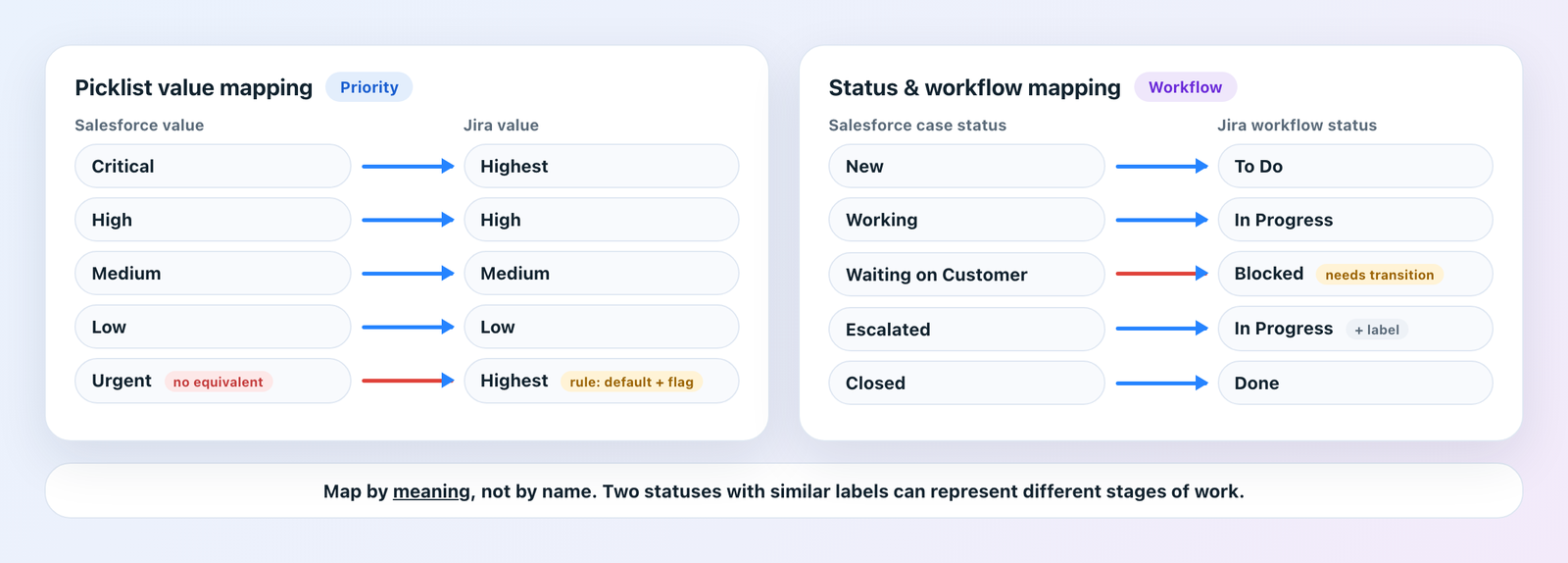
Salesforce says Critical; Jira says Highest. Copying the source value fails when the destination does not recognize it. Explicit value mapping is required.
Status updates fail
Case statuses and Jira workflow statuses represent different stages. Even when mapped, Jira may require a valid workflow transition before an issue can move to the requested state.
Field types are incompatible
A Salesforce text field will not map cleanly to a Jira user, date, multi-select, or numeric field. Related-looking fields can have different data types and validation rules.
Updates overwrite each other
When a field syncs in both directions without an owner, one platform silently overwrites the other, and repeated updates can create sync loops.
Records linked incorrectly or duplicated
Matching records by subject or description is unreliable. Without a stable identifier, the integration links the wrong records or creates duplicates.
Map values and statuses by meaning, and decide up front what happens to values with no equivalent.
Values and statuses
Map by Meaning, Not by Name
Picklists are the most frequent Salesforce Jira field mapping failure. Create an explicit value map between the corresponding options, then decide how unmatched values are handled: copied as-is, converted to a predefined default, left empty where allowed, or reported as an error. Verify which of those your connector supports.
Statuses need one more step. A Salesforce case marked Waiting on Customer rarely corresponds to a Jira issue In Progress. Document the statuses both teams use, define the business meaning of each, map equivalent states only where the meaning matches, and configure the workflow transitions Jira needs to accept the change. Do not assume two fields with similar names represent identical workflow states.
Ownership
Give Every Field One Owner
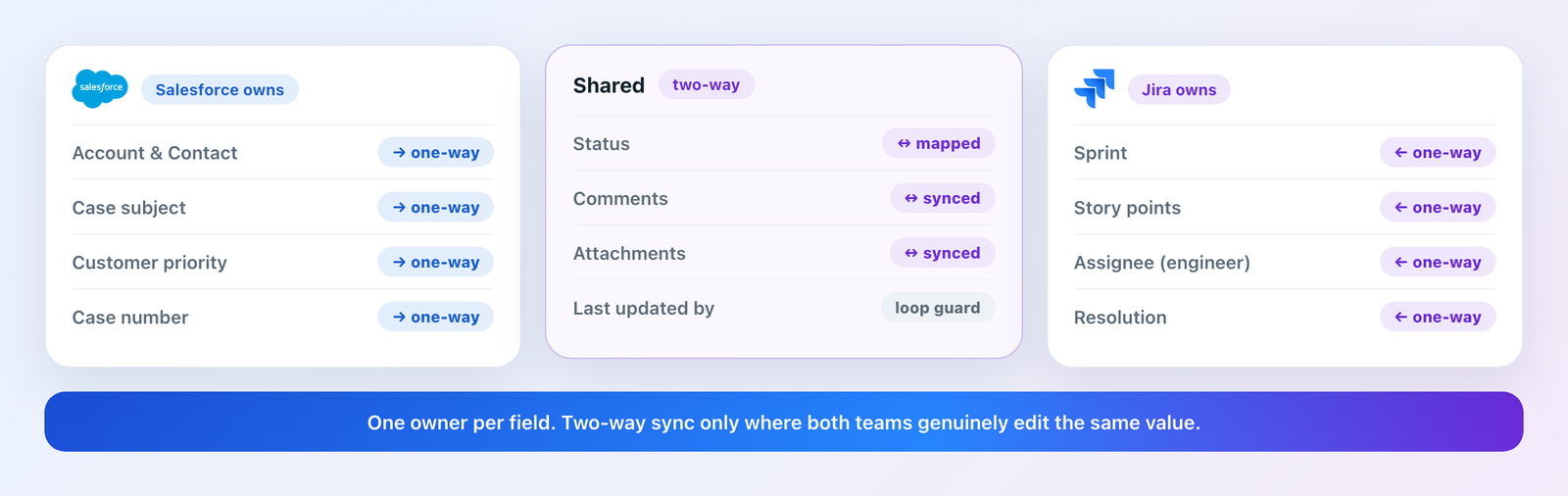
When a field is synchronized in both directions, updates from either system affect the same value. Without clear ownership rules, one platform overwrites information entered by the other, and in some configurations repeated updates create unnecessary synchronization cycles.
Ownership is part of Salesforce Jira field mapping, not an afterthought. Assign it at the field level. Salesforce typically owns customer and case information; Jira owns development estimates, sprint assignments, and engineering resolution. Choose one-way synchronization for fields that should have a single owner, and use bidirectional synchronization only where both teams genuinely edit the same value, such as status and comments.
One owner per field. Two-way sync only where it is needed.
Troubleshooting playbook
How to Fix Each Salesforce Jira Field Mapping Problem
Open the Salesforce Jira field mapping problem you are seeing for the steps to work through.
1. Salesforce custom fields are missing from the mapping screen
Confirm that the field exists on the correct Salesforce object.
Check the integration user's object permissions and field-level security.
Verify that the connector supports the field type.
Review the connector's configuration and documentation for unsupported field configurations.
Recheck the mapping after correcting the configuration.
2. Picklist values do not match
Build an explicit value map between the corresponding options (for example Critical to Highest).
Decide how values with no equivalent are handled: default, empty, or error.
Test every value in the picklist, not just the common ones.
3. Status updates fail between Salesforce and Jira
Document the statuses used by both teams and the business meaning of each.
Map equivalent states only where the meaning matches.
Configure the workflow transitions Jira requires for each target status.
Test forward and reverse updates if bidirectional synchronization is required.
4. Field types are incompatible
Review the field types on both sides before mapping.
Use a compatible destination field or a transformation where the connector supports one.
Test empty values, invalid values, and boundary cases before deploying.
5. Updates overwrite information unexpectedly
Assign an owner to every synced field.
Switch single-owner fields to one-way sync.
Keep two-way sync only for fields both teams edit, and check the connector guards against update loops.
6. Records are linked incorrectly or duplicates are created
Use stable record identifiers or dedicated external reference fields supported by the integration.
Define how new records are created, how existing records are matched, and what happens when a record is deleted or recreated.
Test duplicate handling before enabling synchronization for large volumes of records.
Checklist
A Practical Salesforce Jira Field Mapping Checklist
Work through this before deploying your integration.
List the Salesforce and Jira objects involved.
Identify the fields each team actually needs.
Confirm field types, permissions, and required values.
Map picklist values and priority levels explicitly.
Document status equivalents and workflow transitions.
Assign ownership to fields that should not be overwritten.
Define how unmatched values and failed updates are handled.
Confirm how records are linked and duplicates are prevented.
Test creation, updates, errors, and reverse synchronization.
Monitor the integration after deployment.
A controlled rollout beats synchronizing every available field on day one. Start with the fields needed for the most important business workflows, validate the results, and expand the scope as requirements become clearer.
Why it matters
Field Mapping Preserves Meaning, Not Just Data
Consider a customer reporting a critical issue through a Salesforce case. Support assigns a high priority, and a related Jira issue is created for engineering. If the priority mapping is wrong, the development team sees a lower urgency than support intended. The data moved, but its business meaning was lost in transfer.
Correct Salesforce Jira field mapping preserves context across teams. Customer impact, issue status, ownership, and resolution information are interpreted consistently on both sides, which is what makes a cross-platform workflow dependable. When a mapped update does fail, our guide to Salesforce integration error handling covers how to catch and recover it.
The solution
How ADL Connect Handles Field Mapping
The Salesforce Jira field mapping capabilities to assess in any connector, and how ADL Connect for Jira covers them.
No-code field mapping
Drag-and-drop mapping for standard and custom fields, including picklists and lookup relationships, configured inside Salesforce rather than a middleware dashboard.
Direction you control
Outbound and inbound rules are configured separately, so Salesforce-owned fields stay one-way while shared fields such as status and comments sync both ways.
Stable record links
Every Jira issue is tied to its Salesforce record through a dedicated external ID field, which keeps matching reliable and prevents duplicates.
The appropriate configuration depends on your Salesforce objects, Jira workflows, and internal data ownership rules. The Jira connector user guide walks through project mapping, field mappings, and inbound rules screen by screen, and the complete Salesforce Jira integration guide covers the wider rollout.
Customer feedback
What Teams Say After Fixing Their Field Mapping
A few words from teams that cleaned up their Salesforce Jira field mapping with ADL Connect.
★★★★★
“Half our "sync is broken" tickets were really priority values that had no match in Jira. Explicit value mapping cleared them in a day.”
PN
Priya N.Salesforce Administrator, SaaS
★★★★★
“Giving each field one owner stopped the overwrite wars between support and engineering.”
JC
James C.Engineering Manager, Fintech
★★★★★
“We stopped matching on subject lines. Linking by case number ended the duplicate issues overnight.”
EL
Elena L.Support Operations Lead, E-commerce
Pricing
ADL Connect for Jira Plans
Start free on AppExchange, map the fields that matter first, and upgrade when you need more scale.
Plan
Price
Key inclusions
StartupFree forever
$0
Up to 5 users, 1,000 callouts, the native AppExchange package, and business-hours support.
SilverGrowing teams
$129 / month
Up to 10 users, 2,000 callouts, and email & chat support with a 24-hour response.
EnterpriseBest value
$49 / month
First-year offer (renews at $199/month). Unlimited users and callouts, 24×7 priority support, and a dedicated account manager.
Prices are billed annually. See the full plan comparison on the ADL Connect for Jira page.
FAQ
Frequently Asked Questions
What is Salesforce Jira field mapping?
It defines how Salesforce fields correspond to Jira fields and how their values should be transferred or transformed between the two systems.
Why are Salesforce custom fields missing from Jira mapping?
Possible causes include unsupported field types, missing permissions for the integration user, field visibility settings, or connector limitations. Check each in that order.
How do you fix Salesforce Jira status mismatches?
Treat it as a Salesforce Jira field mapping task. Define the meaning of each status, map equivalent values where appropriate, and verify that the destination workflow permits the required transitions.
Should Salesforce and Jira use bidirectional field synchronization?
Only when both systems need to update the same field. Assigning a clear owner to each field prevents unintended overwrites and sync loops.
Map the Right Fields, the First Time
Before you troubleshoot a failed Salesforce Jira sync, check the Salesforce Jira field mapping. ADL Connect gives you no-code field mapping, per-direction rules, and stable record links, installed straight from the AppExchange. Try it free or talk to our team about your objects and workflows.