Personal Access Tokens & basic auth are being retired across Azure DevOps, Jira, ServiceNow & more. Switch to OAuth 2.0 — fully supported in ADL Connect.
Salesforce Integration Error Handling: How to Prevent Silent Sync Failures
Posted on
Updated on October 23, 2026
Author : ADL Solution
Salesforce Integration · Reliability Guide
The most dangerous integration failure is often the one nobody notices.
Connecting Salesforce with other business applications helps organizations streamline operations, reduce manual work, and improve data visibility. But creating a connection between two platforms does not guarantee that every update will be delivered successfully.
A Salesforce record might be updated while the corresponding information in another application stays unchanged. An API request may time out, an authentication token may expire, or an external platform may be temporarily unavailable. When those synchronization errors go undetected, sales teams work with outdated customer information, support teams miss important case updates, and IT teams spend hours investigating inconsistencies.
This is why Salesforce integration error handling should be a core part of every integration strategy, not something added after problems occur. This guide covers the common causes of sync failures, seven practices that make failures visible and recoverable, and a real-world Salesforce and Jira example.
Root causes
What Causes Salesforce Integration Failures?
Understanding the common causes of failure is the first step toward reliable Salesforce integration error handling.
API timeouts and network interruptions
A request fails because of a network interruption, a slow response, or a temporary outage. A case update sent to Jira may never get a response before the configured timeout, and without a recovery mechanism the update stays incomplete.
Authentication and permission errors
Expired OAuth tokens, incorrect credentials, insufficient permissions, or changed security settings can stop an integration from reading records or updating fields.
API rate limits
Too many requests in a short period trigger rate limiting, and retrying blindly makes it worse. A well-designed integration recognizes rate-limit responses, waits, and retries when it is safe.
Field mapping and validation problems
Salesforce may use the priority value High while the other platform expects P1. A required field may be missing, or a destination field may reject the incoming value. These need explicit mapping rules, not another API request.
Missing monitoring and alerts
An integration can fail repeatedly without anyone noticing. A successful connection test only proves the connection worked at that moment, not that future updates will succeed.
Upstream configuration changes
A renamed field, a new required field, a changed workflow, or a rotated credential on either side can break a mapping that worked yesterday. Changes to connected systems need to be part of the release checklist.
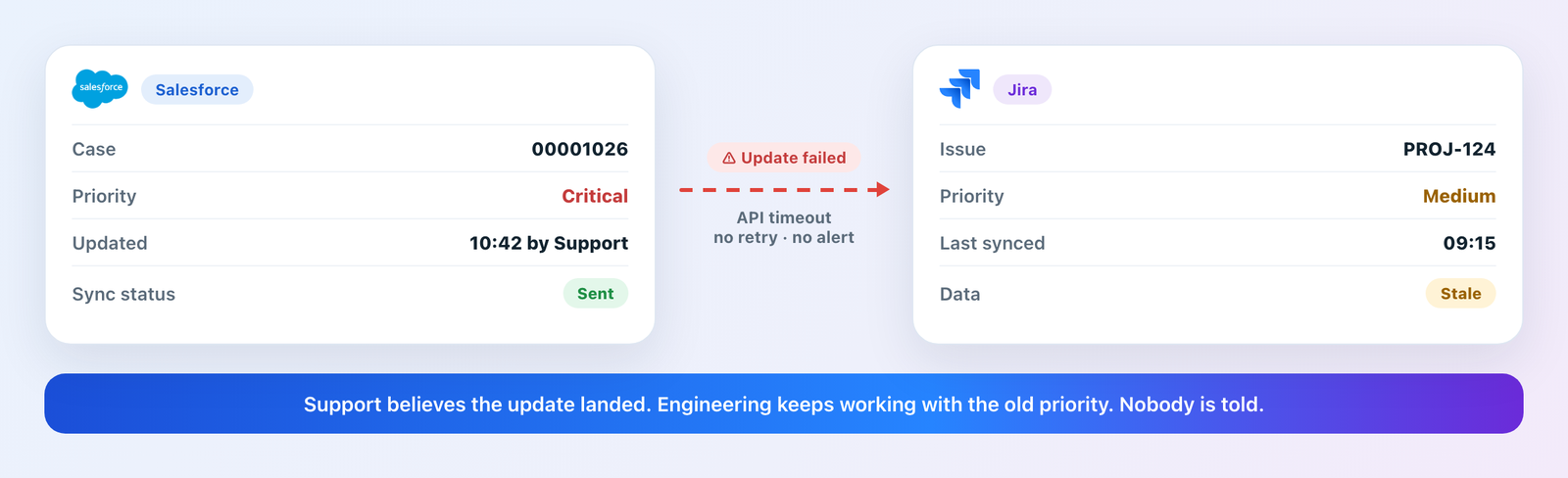
A silent failure: Salesforce shows the update as sent, Jira never received it, and nobody is told.
The problem
Why Silent Failures Cost the Most
A loud failure gets fixed. Someone sees an error, raises a ticket, and the update is resent. A silent failure is different: the source system believes the update was delivered, the destination quietly keeps the old value, and both teams carry on with different versions of the truth.
The cost shows up later, as a renewal call that misses an open escalation, an engineering team working to the wrong priority, or a reconciliation project that takes days. Good Salesforce integration error handling is designed around one goal: no failure stays invisible.
Best practices
7 Best Practices for Reliable Salesforce Integration Error Handling
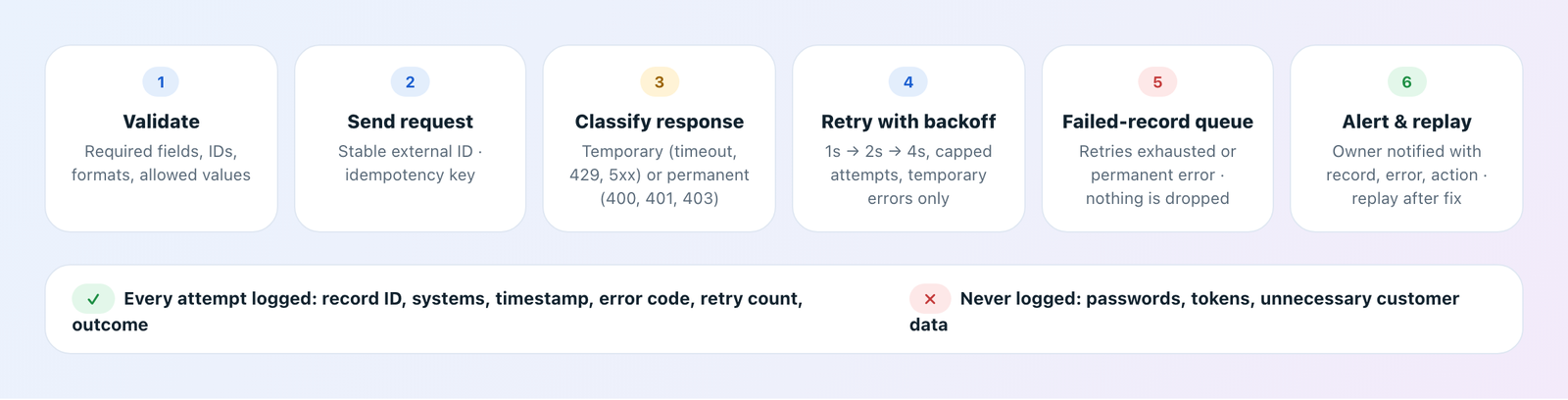
The pipeline below is what Salesforce integration error handling looks like when the seven practices work together.
Validate first, retry only what is safe to retry, and never let a failed record disappear.
1
Validate data before sending requests
Check required fields, record identifiers, field formats, and supported values before sending information to the destination. Early validation prevents avoidable failures and makes error messages easier to understand.
2
Implement controlled retry logic
Temporary network errors and service interruptions are often recoverable. Use a limited retry strategy with increasing delays (exponential backoff), and never retry permanent validation or permission errors without fixing the underlying issue.
3
Prevent duplicate processing
A failed request does not always mean the destination failed to process it; the response may simply never have arrived. Use stable record identifiers, external IDs, idempotency controls where supported, and duplicate detection so retries are safe.
4
Maintain detailed error logs
Capture the record or transaction identifier, source and destination systems, timestamp and duration, error code and failure category, retry count, and final outcome. Never record passwords, access tokens, or unnecessary customer data.
5
Configure meaningful alerts
Notify the responsible team when failures exceed an agreed threshold, retries are exhausted, or a queue of pending updates keeps growing. Every alert should say what failed, which workflow is affected, and what action is required.
6
Design a recovery process
Failed records should not simply disappear. Use a retry queue, a failed-record list, or a controlled replay mechanism, and give authorized team members a way to investigate, correct the cause, and safely resume processing.
7
Monitor integration health continuously
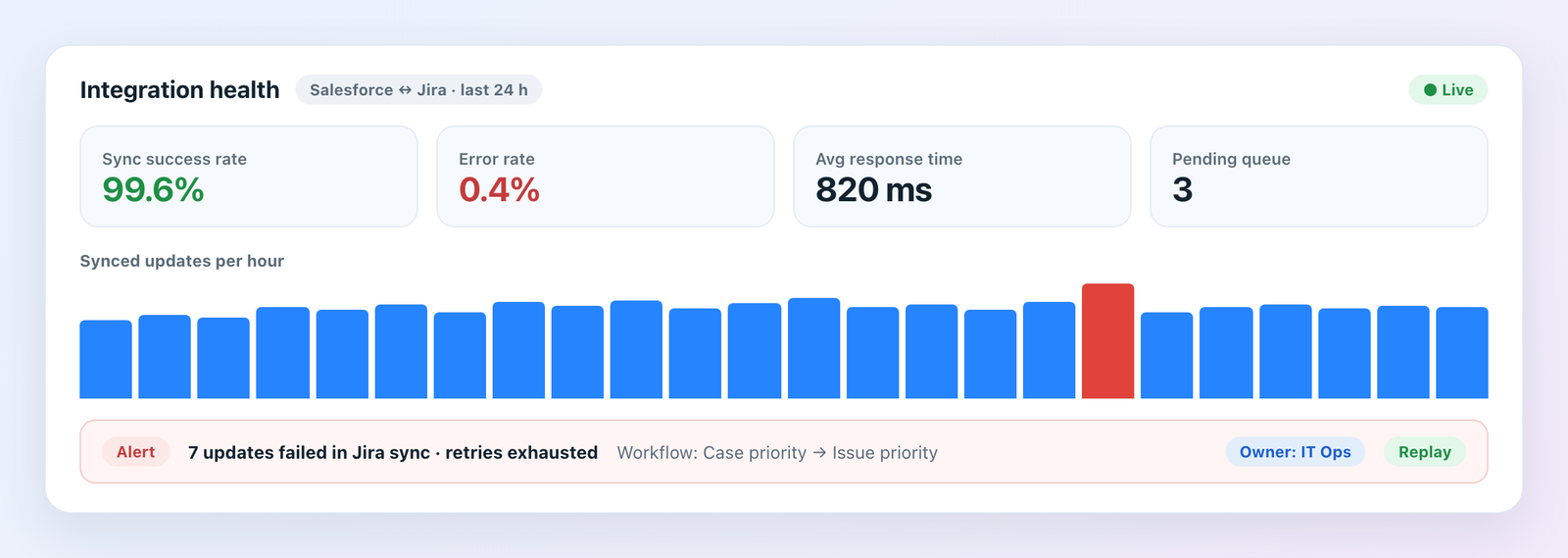
Measure more than whether an endpoint is reachable. Track synchronization success rate, error rate, response time, pending queue depth, and recovery time, and review them as part of normal operations.
Decision guide
Which Integration Errors Should Be Retried?
Not every failure deserves another attempt. Good Salesforce integration error handling classifies the response first, then acts.
Error
Retry?
What to do
Timeout or network interruption
YesTemporary.
Retry with exponential backoff and a capped number of attempts. Use an idempotency key so a late success is not duplicated.
Retry a few times with backoff. If the error persists, move the record to the failed queue and alert.
Validation error (HTTP 400)
NoPermanent.
Fix the data or the field mapping first. Retrying the same payload produces the same failure.
Authentication or permission (401 / 403)
NoPermanent.
Renew credentials or correct permissions, then replay the queued records.
Sent, but no response
CarefullyAmbiguous.
Check whether the destination already processed it (external ID lookup) before resending, to avoid duplicate records.
Real-world example
Salesforce and Jira: A Priority Change That Never Arrived
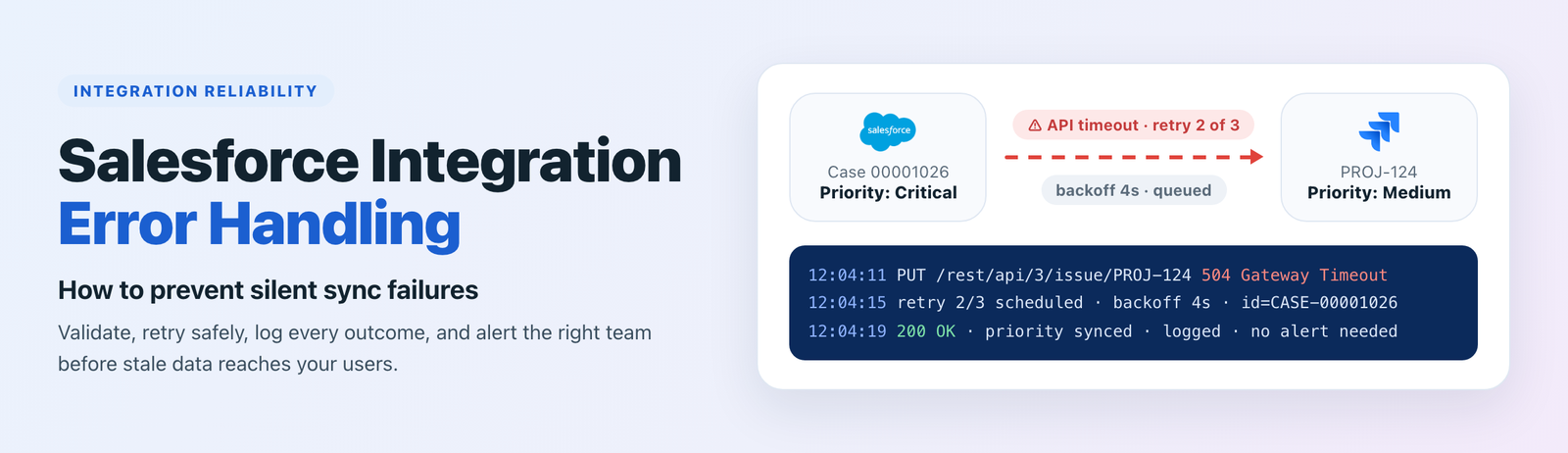
A customer reports a critical product issue to the support team. The case is stored in Salesforce, and a corresponding development issue is created in Jira. Later, the support team raises the case priority, but the update fails because of an API timeout.
Without monitoring and recovery, the development team keeps working to the previous priority. Support assumes the update was delivered; engineering works with outdated information. With proper Salesforce integration error handling in place, the integration detects the failed update, retries it when appropriate, records the outcome, and alerts the responsible team if the problem is not resolved.
The objective is not to guarantee that failures never happen. It is to make failures visible, recoverable, and manageable.
What continuous monitoring looks like: success rate, error rate, queue depth, and an alert with an owner.
The solution
How ADL Connect Supports Connected Workflows
The Salesforce integration error handling questions to ask of any connector before it goes live, and how ADL Connect answers them.
ADL Connect connects Salesforce with Jira, Azure DevOps, ServiceNow, Zendesk, and Xurrent natively from the AppExchange. It keeps a full audit history of every synced change, provides an error log admin page for diagnostics, and runs inside the Salesforce trust boundary using Named Credentials and field-level security. Field mappings, including picklists and custom fields, are configured without code, which removes a whole class of validation failures before they happen.
How are updates synchronized? Real time or polling, one-way or two-way, and what happens when the other side is unavailable.
How are field mappings configured? Explicit value mapping for picklists and statuses, not blind copying. See our Salesforce Jira field mapping guide.
How are errors surfaced? A log an admin can read, with the record, the error, and the retry outcome.
How are exceptions handled? A defined path for failed records: queue, alert, fix, replay.
The right approach should match your business workflows, security requirements, data ownership rules, and operational needs. For a deeper walkthrough of the Jira connector, read the complete Salesforce Jira integration guide or review the security model on our Trust & Security page.
Customer feedback
What Teams Say After Fixing Silent Sync Failures
A few words from teams that rebuilt their Salesforce integration error handling with ADL Connect.
★★★★★
“We used to find out about failed updates when a customer complained. Now the failed record shows up in the log with an owner, and it gets replayed the same hour.”
SR
Sanjay R.IT Operations Manager, SaaS
★★★★★
“The retry and audit history meant we could finally prove to engineering which priority was set, and when.”
MH
Megan H.Head of Customer Support, Fintech
★★★★★
“Our old middleware retried everything, including bad data, and created duplicates. Classifying errors properly ended that.”
TB
Tom B.Salesforce Administrator, Logistics
FAQ
Frequently Asked Questions
What is Salesforce integration error handling?
It is the process of detecting, recording, managing, and recovering from errors that occur when Salesforce exchanges data with external applications such as Jira, Azure DevOps, ServiceNow, or Zendesk.
How can I prevent Salesforce data synchronization failures?
Treat Salesforce integration error handling as part of the design. Use data validation, appropriate retry logic, detailed logging, proactive alerts, and reconciliation checks to identify missing or unsuccessful updates before they affect your teams.
Should every Salesforce API error be retried?
No. Retry temporary failures such as timeouts, rate limits, and server errors when appropriate. Permanent errors, such as invalid data or insufficient permissions, require correction before another attempt.
What is exponential backoff?
A retry strategy where the delay between attempts grows each time, for example 1 second, then 2, then 4, up to a fixed limit. It gives a struggling system time to recover instead of overwhelming it with immediate retries.
Why is integration monitoring important?
Monitoring is the half of Salesforce integration error handling that catches what retries cannot. It helps teams identify failed requests, delayed updates, recurring errors, and performance problems before they cause larger operational issues or silent data drift between systems.
Make Every Sync Failure Visible and Recoverable
Salesforce integration error handling is easier when the connector is built for it. ADL Connect brings audited, real-time sync to Jira, Azure DevOps, ServiceNow, Zendesk, and Xurrent, with no middleware to babysit. Explore the connectors or talk to our team about your workflows.